
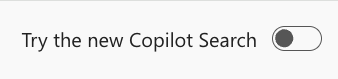
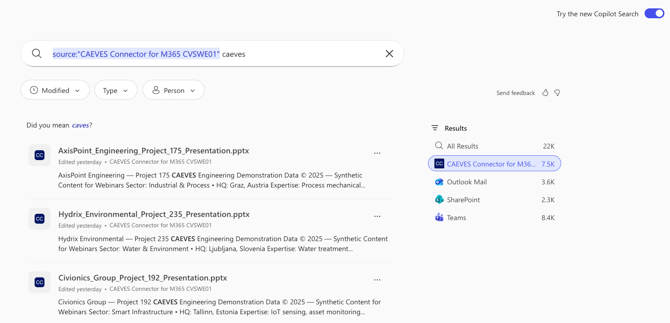
NOTE: This custom result type DOES NOT APPLY to the Dynamic Adaptive cards provided by the Microsoft Copilot "Try the new Copilot Search" option. Switch the selector to "off" to enforce custom search results.
Scenario:
In some scenarios, IT administrators or Power Users would require access to the the files stored in CAEVES via a network file share. These files, and any previous versions taken of those files, are available via the CAEVES virtual file share UNC path, i.e. \\CAEVES\Share\Folder.
Requirements:
- Administrative access to Microsoft 365 admin portal to create the custom results schema.
- When using the UNC path as a displayed parameter, the CAEVES instance needs to be "online" and enumerable from a NetBIOS/DNS perspective.
- The UNC path, as presented by the results schema, needs to be accessible from a user's persepective, in terms of networking and corresponding Active Directory / Entra ID authentication / authorization, when accessing the CAEVES virtual file share.
1. Open Microsoft Admin Portal with administrative credentials
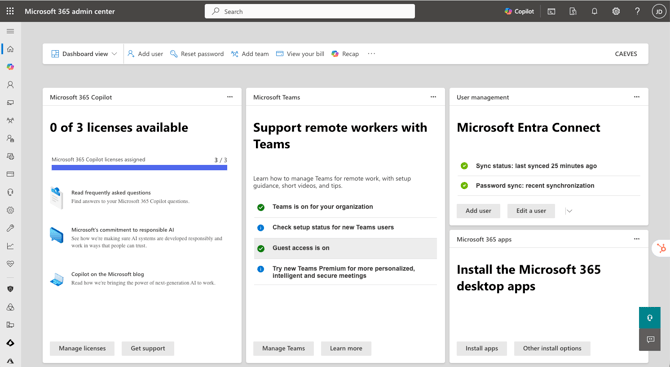
2. Navigate to "Settings" followed by "Search & intelligence"
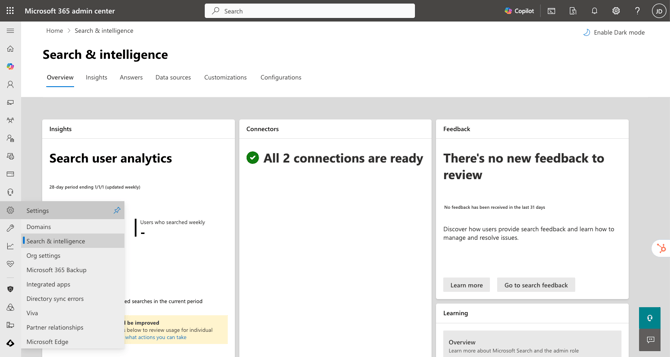
3. On the "Search & intelligence " page, select "Customizations" to create a custom result type
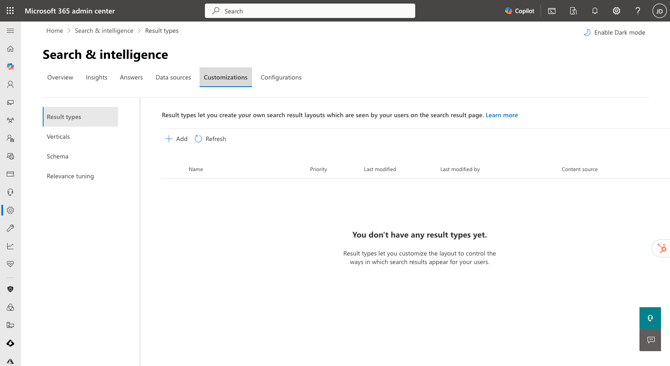
4. Name the result type, this will provide you the option to override the search schema of Microsoft Search. Click "Next" to continue.
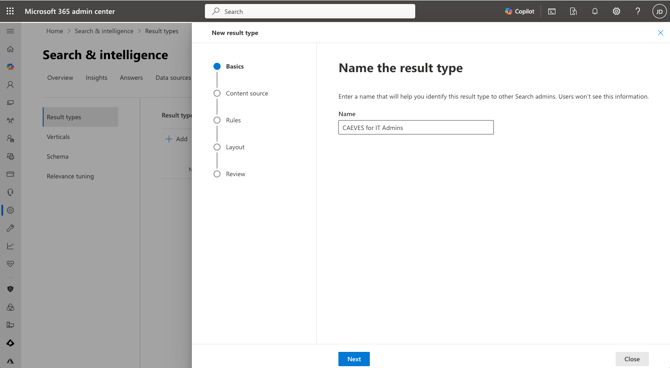
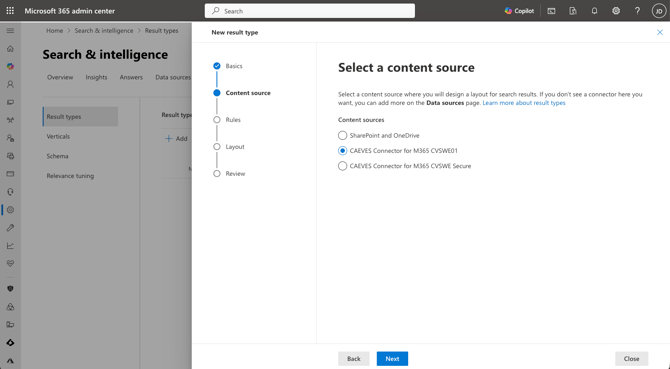
5. Select a content source, select your designated CAEVES Copilot Connector. Click "Next" to continue.
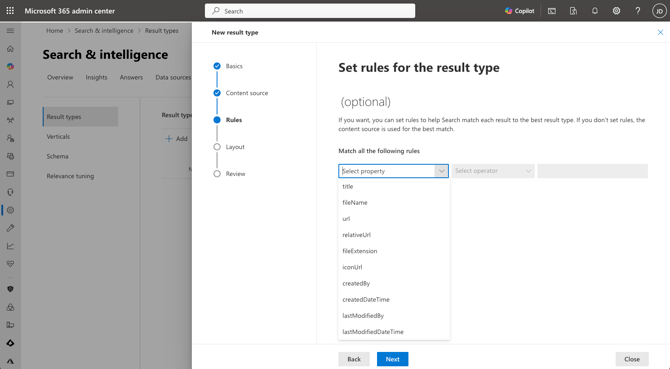
6. Optionally set specific filtering rules for the result type, i.e. only include results with a certain file extension or within a periodic time range. Click "Next" to continue.
7. Copy the following AdaptiveCard .JSON content to the textbox with the Layout designer output.
{
    "type": "AdaptiveCard",
    "version": "1.3",
    "body": [
        {
            "type": "ColumnSet",
            "columns": [
                {
                    "type": "Column",
                    "width": "auto",
                    "items": [
                        {
                            "type": "Image",
                            "url": "https://caeves.com/hubfs/logo/adaptivecardicon.png",
                            "horizontalAlignment": "Center",
                            "altText": "Result logo",
                            "width": "48px",
                            "height": "48px"
                        }
                    ],
                    "height": "stretch"
                },
                {
                    "type": "Column",
                    "width": "stretch",
                    "items": [
                        {
                            "type": "TextBlock",
                            "text": "[${title}](${url})",
                            "color": "Accent",
                            "size": "Medium",
                            "weight": "Bolder"
                        },
                        {
                            "type": "TextBlock",
                            "text": "**Navigate to:** [${relativeUrl}](${relativeUrl})",
                            "wrap": true,
                            "maxLines": 1,
                            "spacing": "Small"
                        },
                        {
                            "type": "TextBlock",
                            "text": "${ResultSnippet}",
                            "wrap": true,
                            "maxLines": 3,
                            "spacing": "Small"
                        }
                    ],
                    "horizontalAlignment": "Center",
                    "spacing": "Small"
                }
            ]
        }
    ],
    "$schema": "http://adaptivecards.io/schemas/adaptive-card.json"
}
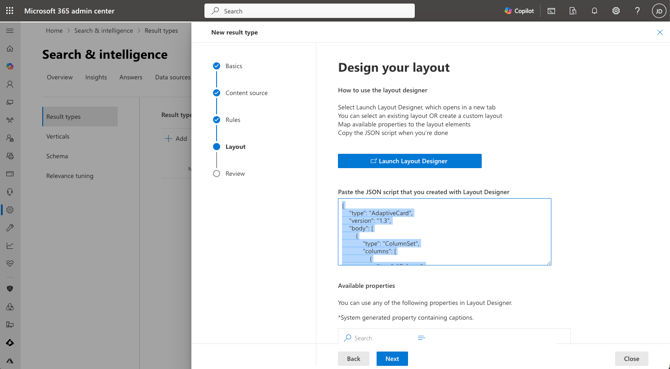
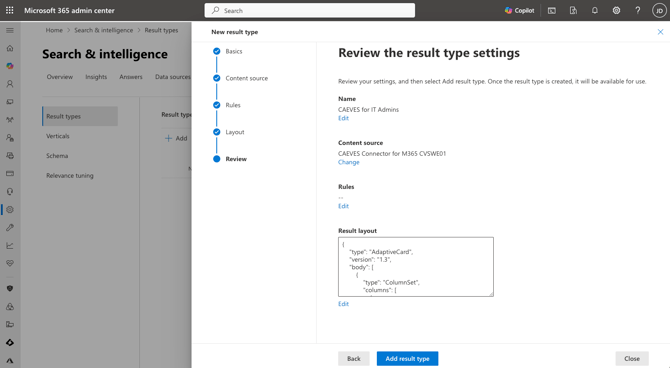
8. Review the result type setting, and click "Add result type" to complete the process.
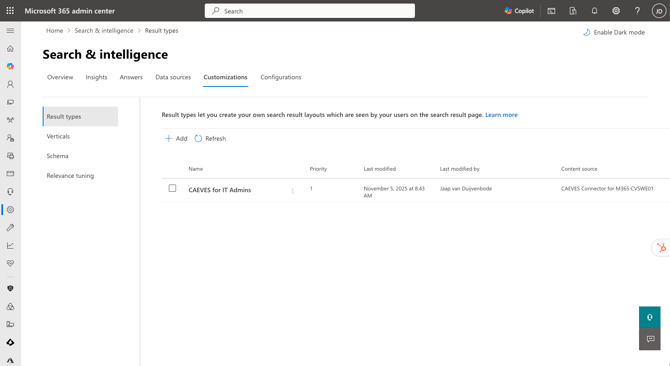
9. Confirm the result type has been successfully added.
10. Perform a basic search with the default parameters, which provides the dynamic adaptive card, NOT the custom results.
11. Swith the "Try the new Copilot Search" selector at the right top section of the page, this will display the results WITH the custom results.
NOTE: With this adaptive card, we have added the "Navigate to: " option, which allows users to access the source origin file location which represents the CAEVES virtual file share UNC path.
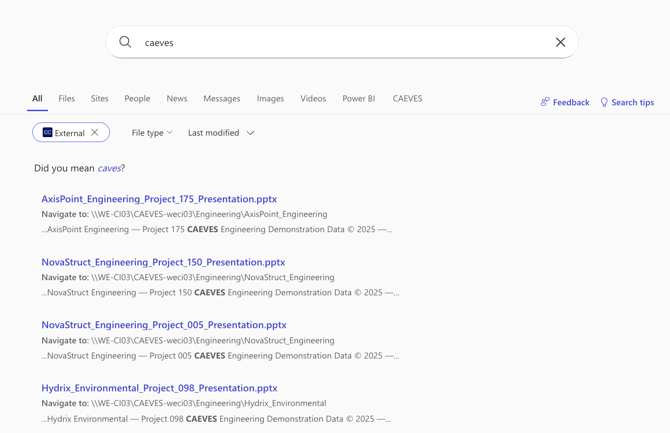
12. Try clicking the UNC path in the search results, followed by opening the file location in Windows Explorer
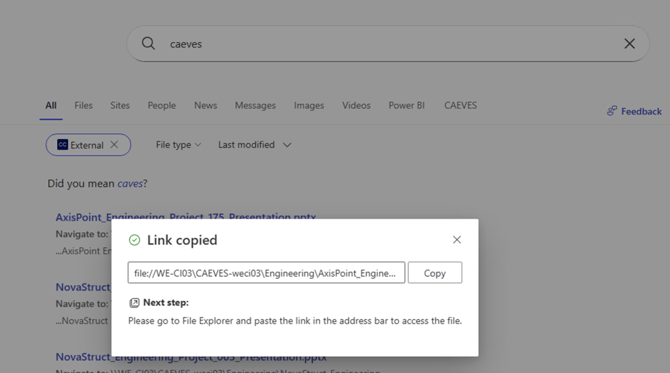
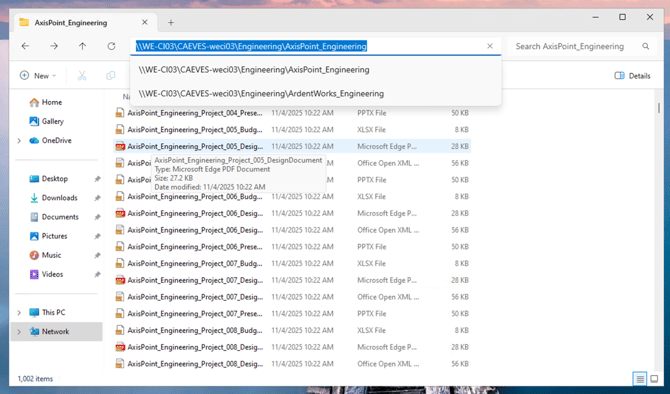
From here you can access the originating files, folders and corresponding information. This can be used to repurpose specific parts of your dataset, copy and rehydrate or restoring a previous version of the file.