
1. Prerequisites
- You must have access to the Azure snapshot resource.
- OSFMount installed on your machine.
- Administrator privileges to run PowerShell scripts.
2. Download Snapshot from Azure
- Open the Azure Portal and navigate to the snapshot container and select a snapshot.
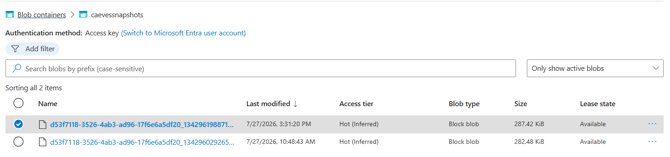
- Click Generate SAS on the top menu.
- Set the expiry time as needed (default: 3600 seconds / 1 hour).
- Click Generate SAS token and URL.
- Copy the generated SAS URL.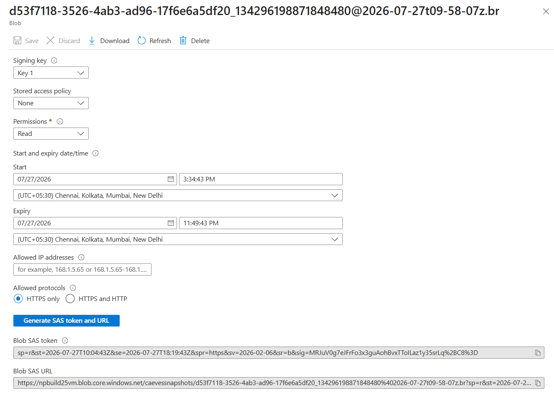
- Download Snapshot
- Paste the SAS URL into a web browser; the snapshot download will start automatically.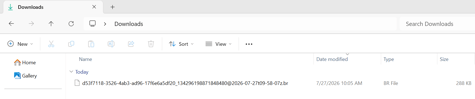
- Create a folder: C:\TestSnap
- Copy the snapshot file into this folder
- Rename the snapshot file to: snapshot.br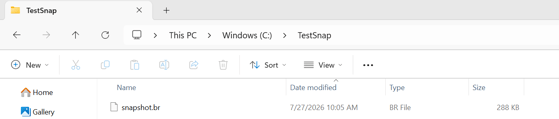
- Decompress Snapshot
- Download Brotli from: https://github.com/google/brotli/releases
- Use: Brotli-x64-windows-static.zip
- Extract and place brotli.exe in C:\Brotli
- Open Command Prompt and Run: C:\Brotli\brotli.exe -d snapshot.br
- Snapshot file is decompressed successfully.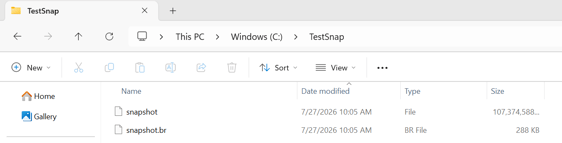
3. Install and Mount Snapshot Using OSFMount
- Download OSFMount from https://www.osforensics.com/tools/mount-disk-images.html.

- Run the installer and follow the prompts to install OSFMount.

- Launch OSFMount.
- Click Mount New.

- Select the downloaded snapshot file.

- If multiple partitions appear, select the one containing your data.
- Assign a drive letter (e.g., E:).
- Check Read-only drive to avoid modifying the snapshot.


- Click OK to mount the image.
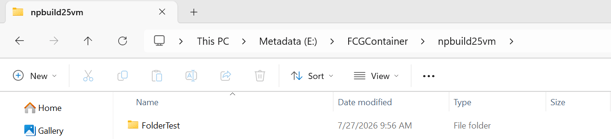
- Open File Explorer to verify the new drive is mounted successfully.

4. Folder Recovery Script Configuration
- Open PowerShell as Administrator.
- Save the above script as Recover_Folder_From_Snapshot.ps1.
- Update the configuration variables inside the script:
- $MountedDrive — your OSFMount drive letter (e.g., E:)
- $BaseDir — base directory path inside the mounted snapshot
- $OriginalDir — folder name inside $BaseDir to recover (e.g., Original)
- $DestinationDir — local folder for recovered data (e.g., C:\RecoveredFolders)
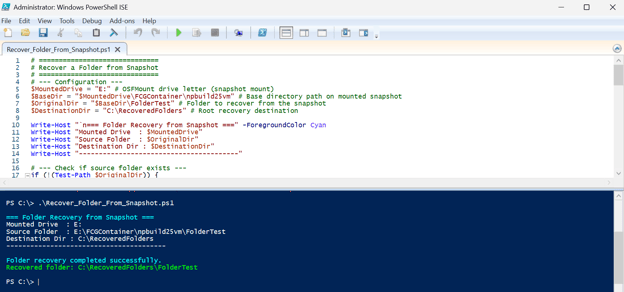
.\Recover_Folder_From_Snapshot.ps1
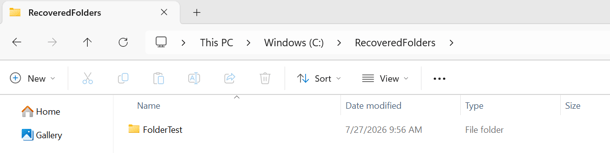
5. Upon successful execution, your recovered folder will be available at the destination path (e.g., C:\RecoveredFolders).
5. PowerShell Script – Recover Folder
# ==============================
# Recover a Folder from Snapshot
# ==============================
# --- Configuration ---
$MountedDrive   = "E:"                     # OSFMount drive letter (snapshot mount)
$BaseDir        = "$MountedDrive\FCGContainer\npbuild25vm"  # Base directory path on mounted snapshot
$OriginalDir    = "$BaseDir\FolderTest"      # Folder to recover from the snapshot
$DestinationDir = "C:\RecoveredFolders"    # Root recovery destination

Write-Host "`n=== Folder Recovery from Snapshot ===" -ForegroundColor Cyan
Write-Host "Mounted Drive   : $MountedDrive"
Write-Host "Source Folder   : $OriginalDir"
Write-Host "Destination Dir : $DestinationDir"
Write-Host "----------------------------------------"

# --- Check if source folder exists ---
if (!(Test-Path $OriginalDir)) {
    Write-Host "Source folder '$OriginalDir' not found in snapshot." -ForegroundColor Red
    exit
}

# --- Ensure destination root exists ---
if (!(Test-Path $DestinationDir)) {
    try {
        New-Item -Path $DestinationDir -ItemType Directory -ErrorAction Stop | Out-Null
        Write-Host "Created destination folder: $DestinationDir" -ForegroundColor Yellow
    } catch {
        Write-Host "Error creating destination folder: $($_.Exception.Message)" -ForegroundColor Red
        exit
    }
}

# --- Compute destination subfolder ---
$FolderName = Split-Path $OriginalDir -Leaf
$FullDestPath = Join-Path $DestinationDir $FolderName
$Recovered = $false

# --- Start Recovery ---
try {
    $robocopyArgs = @(
        ('"' + $OriginalDir + '"'),
        ('"' + $FullDestPath + '"'),
        '/E',          # Copy subdirectories including empty ones
        '/COPYALL',    # Copy attributes, timestamps, permissions
        '/R:2',        # Retry twice on errors
        '/W:5',        # Wait 5 seconds between retries
        '/NP',         # No progress display
        '/NFL',        # No file list
        '/NDL'         # No directory list
    )

    $result = Start-Process -FilePath "robocopy.exe" -ArgumentList $robocopyArgs -Wait -NoNewWindow -PassThru

    switch ($result.ExitCode) {
        0 { $Recovered = $true }
        1 { $Recovered = $true }
        {$_ -gt 1} { Write-Host "Folder recovery encountered issues (Exit code: $_)." -ForegroundColor Yellow }
    }
}
catch {
    Write-Host "Recovery failed: $($_.Exception.Message)" -ForegroundColor Red
}

# --- Completion ---
if ($Recovered) {
    Write-Host "`nFolder recovery completed successfully." -ForegroundColor Cyan
    Write-Host "Recovered folder: $FullDestPath" -ForegroundColor Green
} else {
    Write-Host "`n Folder recovery failed — no folders were recovered." -ForegroundColor Yellow
}
6. Note
- To avoid PowerShell script execution restrictions, you may need to set the execution policy temporarily:
Set-ExecutionPolicy -Scope Process -ExecutionPolicy Bypass
- Always mount the snapshot as read-only to avoid accidental changes.
- robocopy is used for robust and recursive folder copying preserving all metadata.
- If you encounter any permission issues, run PowerShell as Administrator