
Instructions for Configuring the CAEVES Virtual File Share as Read-Only:
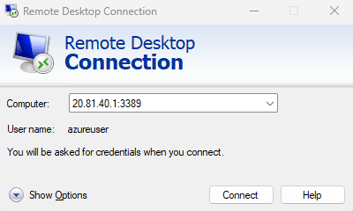
1. Connect Remote Desktop Session to the CAEVES Instance
-
Launch Remote Desktop Connection and connect to the target CAEVES instance.
-
Log in using administrative credentials.
2. Open Computer Management Console
-
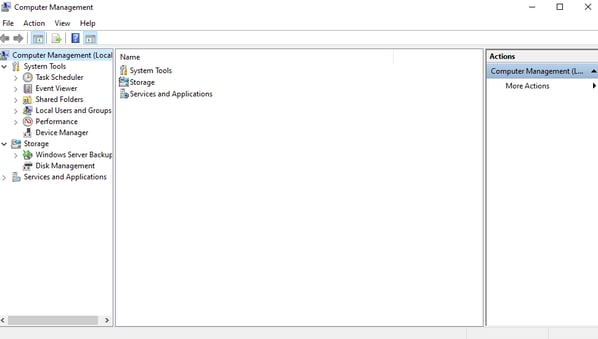
Open the Start menu and search for “Computer Management.”
-
Select Computer Management from the search results.
3. Access Shared Folders
-
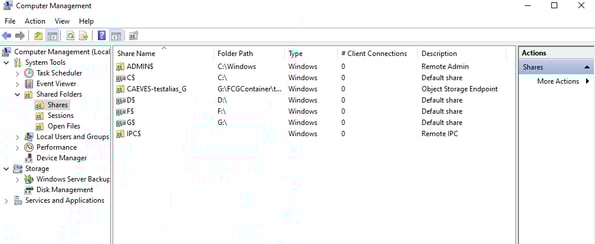
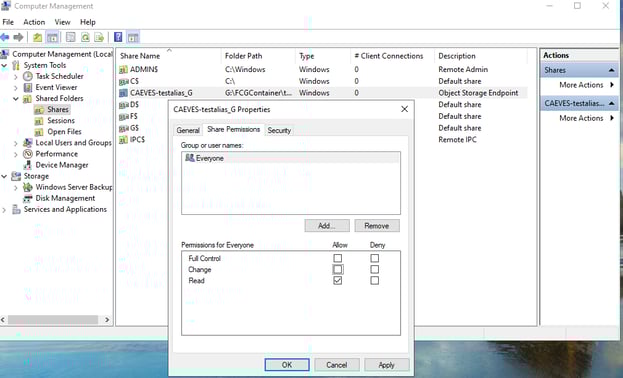
In the Computer Management console, expand System Tools → Shared Folders.
-
Click on Shares to display a list of all shared folders on the server.
4. Open Share Properties
-
Locate the CAEVES virtual file share you want to configure.
-
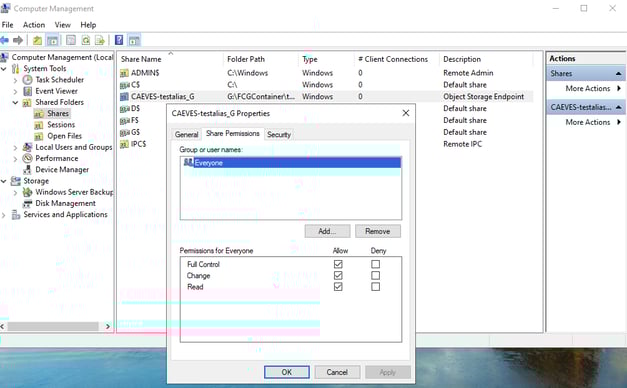
Right-click the share and select Properties.
-
In the Properties window, navigate to the Share Permissions tab.
5. Set Read-Only Permissions
-
Under Group or user names, select the Everyone group.
- In the Permissions section:
Uncheck the boxes for Full Control, Change, and leave Read checked to set the desired permissions for Read-Only access to the CAEVES virtual file share.
- Apply and Save Changes
Click Apply, then OK to save the updated permissions.
You have now successfully configured the CAEVES virtual file share as Read-Only and it is ready for use.