
To review deployment prerequisites, refer to:
Step 1: Deploy Azure Container Instance
You can deploy an Azure Container Instance using the Azure Portal as outlined below.
BASICS:
| Setting | Value |
| Subscription | Microsoft Azure Sponsorship Main 2 |
| Resource Group | DefaultResourceGroup-WEU |
| Container Name | caeves-connector-[xxxx] |
| Region | West Europe |
| Availability Zones | None |
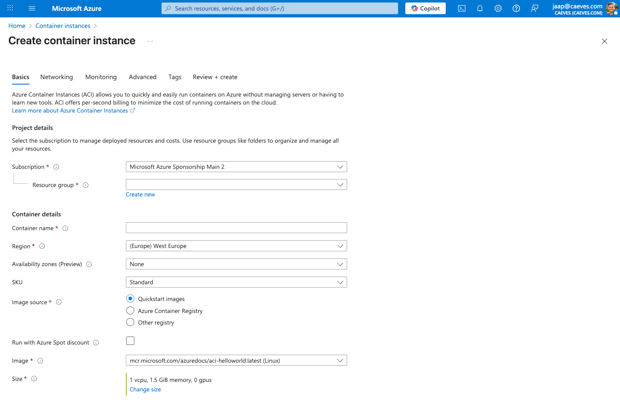
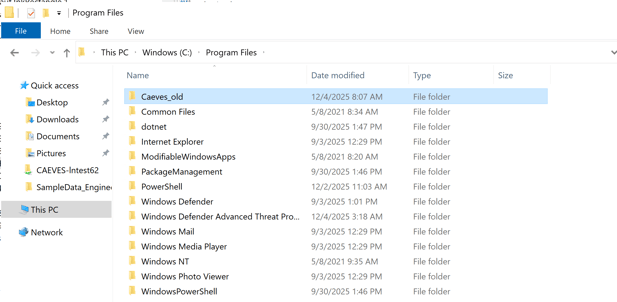
Image source:
| Setting | Value |
| Image Source | Other Registry |
| Image Type | Private |
| Image URL | ghcr.io/caeves/caeves-connector:latest |
| Image Registry Login Server | GitHub Actions |
| Image Registry User name | caeves-ghcr-access |
| Image Registry Password (PAT) | <YOUR_GHCR_PAT> |
| OS Type | Windows |
| Size | CPU 4vCPU Memory 8GB |
NETWORKING:
| Setting | Value |
| IP Type | Public IP Address (no DNS label) |
| Listening Port | 8000 (TCP) |
MONITORING:
| Setting | Value |
| Enable Logs | Yes |
| Subscription | Microsoft Azure Sponsorship Main 2 |
| Log Analytics Workspace | DefaultWorkspace-e0160295-60d8-45c8-b79c-497f48e114cb-WEU |
ADVANCED:
Restart Policy: Always
Add the following Environmental Variables:
| Environment Variable | Value |
| CAEVES_WORKER_TABLE_URL | https://xxxx.table.core.windows.net/caevesmetadataprocess |
| GRAPH_CONNECTION_NAME | CAEVES Connector for M365 Copilot |
| GRAPH_CONNECTION_DESCRIPTION | The connector contains information contained in CAEVES external file share. This contains documents and files. These are of type DOC, DOCM, DOCX, DOT, DOTX, EML, GIF, HTML, JPEG, JPG, MHT, MHTML, MSG, NWS, OBD, OBT, ODP, ODS, ODT, ONE, PDF, PNG, POT, PPS, PPT, PPTM, PPTX, TXT, XLB, XLC, XLSB, XLS, XLSX, XLT, XLXM, XML, XPS, and ZIP |
| GRAPH_CONNECTION_ID | caevesconnectorjaap |
| AZURE_CLIENT_ID | e2be3a7f-f2ea-4edf-8240-848593f665eb |
| AZURE_TENANT_ID |
2c374d5a-0dfb-4917-b79a-d9f38f15a1de |
| STARTUP_DELAY_SECONDS | 20 |
| STARTUP_MAX_RETRIES | 5 |
| ALLOW_DEGRADED_STARTUP | true |
| AZURE_IMDS_TIMEOUT | 15 |
| AZURE_IMDS_MAX_RETRIES | 5 |
| AZURE_TOKEN_RETRY_ATTEMPTS | 5 |
| ACL_FALLBACK_TO_EVERYONE | true |
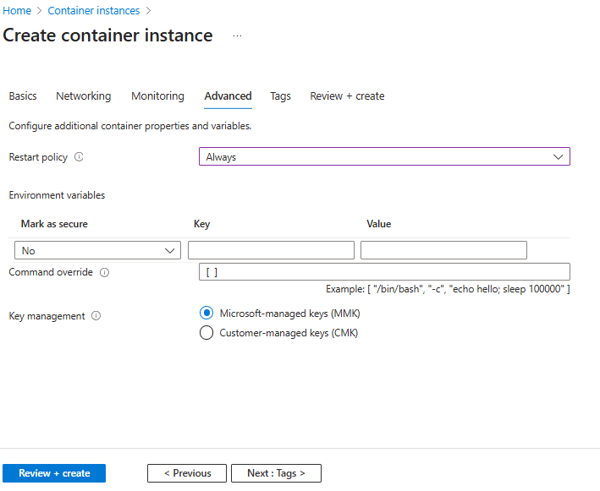
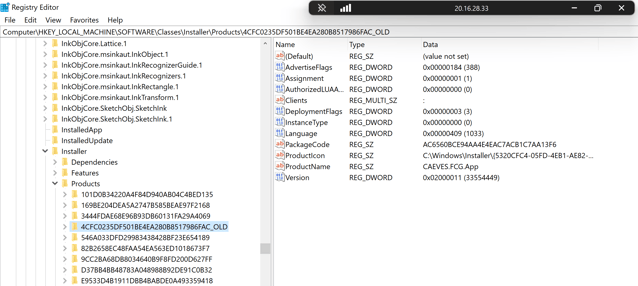
Key Management: Microsoft-managed Keys (MMK)
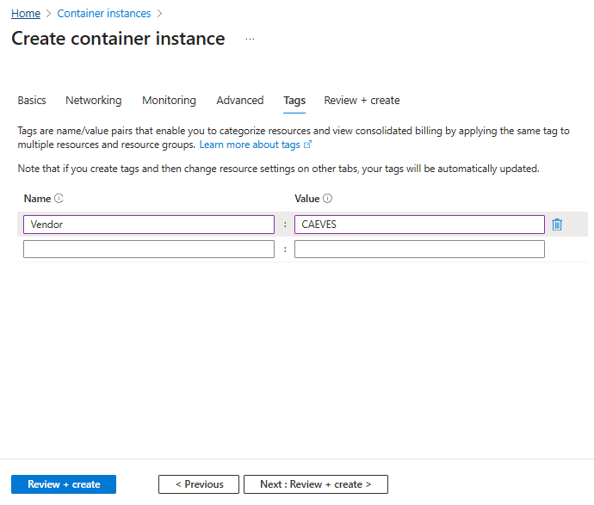
TAGS:
| Name | Value |
| Vendor | CAEVES |
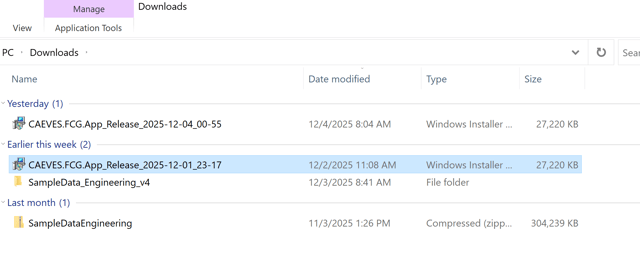
Step 2: Add Managed Identity to Azure Container Instance
- Stop the CAEVES Connector Instance
- Add managed identity to ACI instance
- Start the CAEVES Connector Instance
Step 3: Validate Connector Deployment
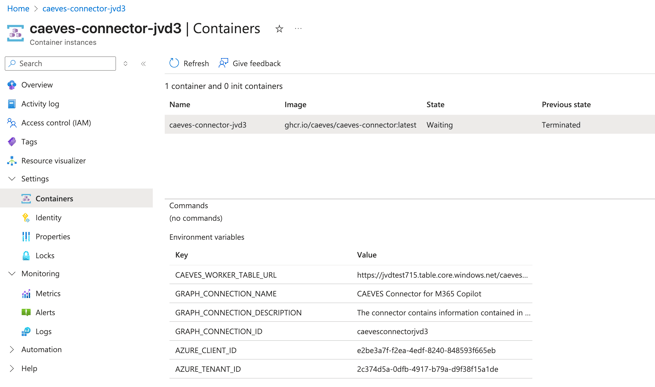
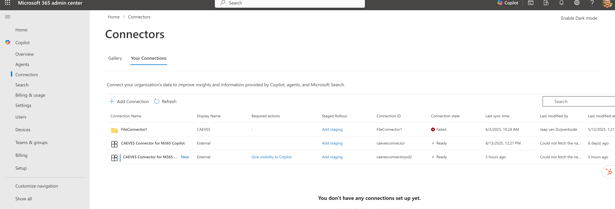
- Validate the Connector is running.
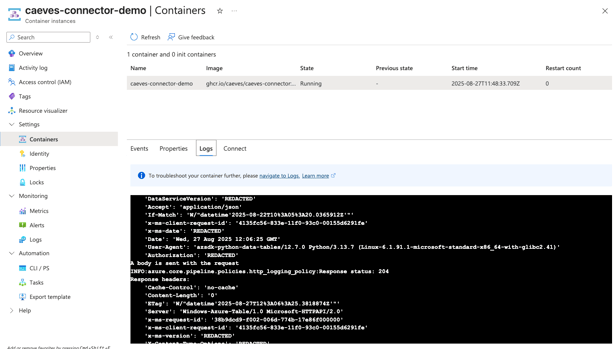
- After a few minutes the connector will show up.
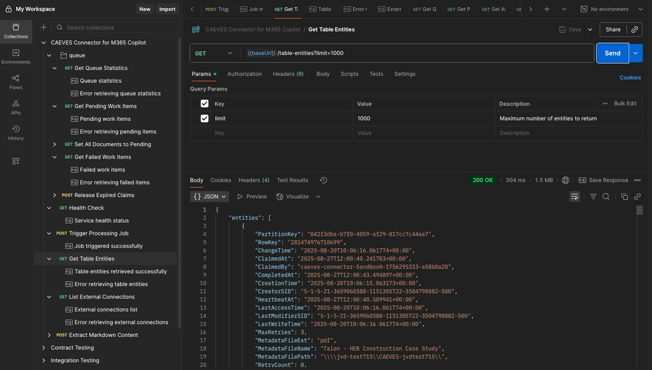
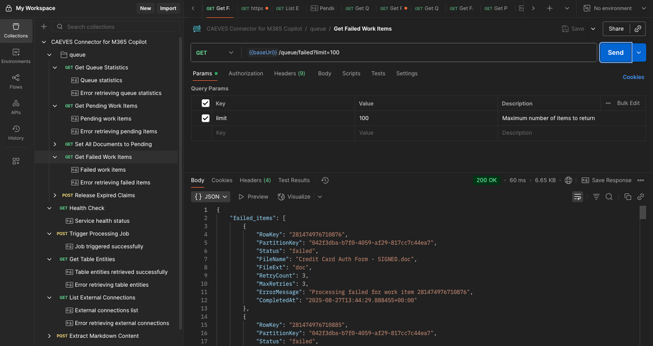
Step 4: Troubleshooting using Postman API
Set {baseurl} to public IP address of API endpoint (TCP 8000)
Use the CAEVES Postman API Collection:
(Add api collection link here)
Available endpoints:
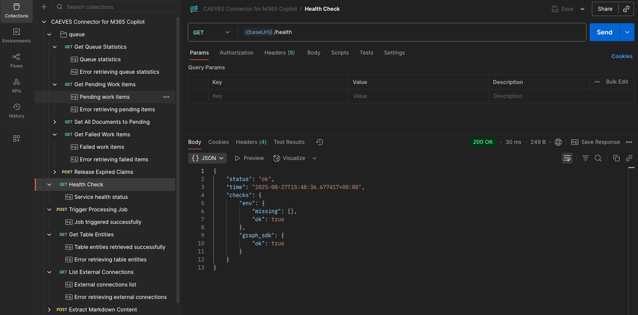
Perform Health Check:
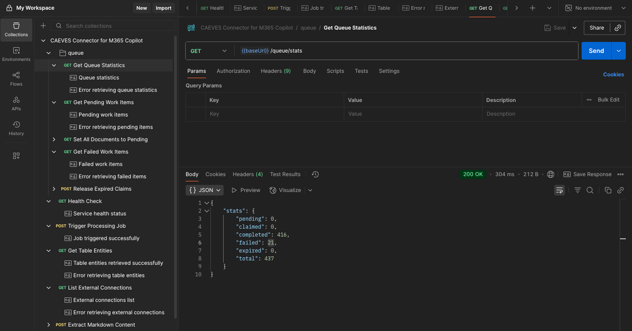
Get Queue Statistics
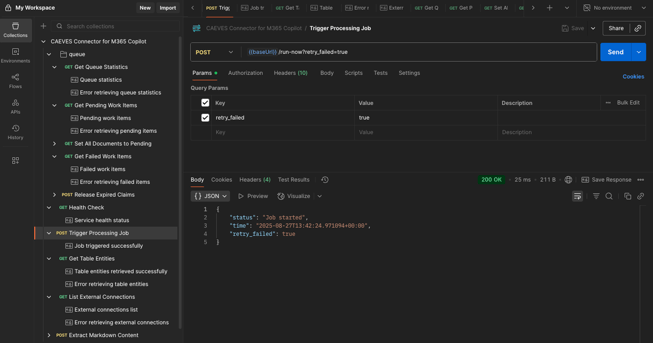
Trigger Processing Job (Start a new Index)
Get Table Entities
Get Failed Work Items
This completes the manual deployment of CAEVES Copilot Connector.