
Prerequisites
Before deploying the CAEVES Copilot Connector, ensure all of the following requirements are met.
1. CAEVES Subscription & Instance
- CAEVES SaaS Subscription
- Must be activated in the customer’s Azure tenant.
- CAEVES Instance
Includes the associated Storage Account containing:
-
Object Storage Container with the files to index.
-
Metadata (Process) Table, used by Copilot to provide extended search and indexing capabilities.
- Config Table, used by Copilot connector to store persistant configuration, i.e. filtering rules.
-
- Storage Account Role Assignments
The CAEVES-associated Storage Account must have explicit role assignments for the User-Assigned Managed Identity. See next steps for detailed information.
2. User Permissions
-
Ability to create a User-Assigned Managed Identity within the Azure subscription.
-
Ability to set the required IAM Role Assignments for the managed identity at both the resource and subscription level.
-
Ability to configure Graph API permissions (Graph Owner) for the managed identity using the Azure CLI.
-
Ability to provision a new Azure Container Instance and assign the managed identity via the Azure Resource Manager.
- Provision:
- Azure Container Instance (ACI)
- Virtual Network (VNET)
- Subnet
- Provision:
Step 1: Create User Assigned Managed Identity
-
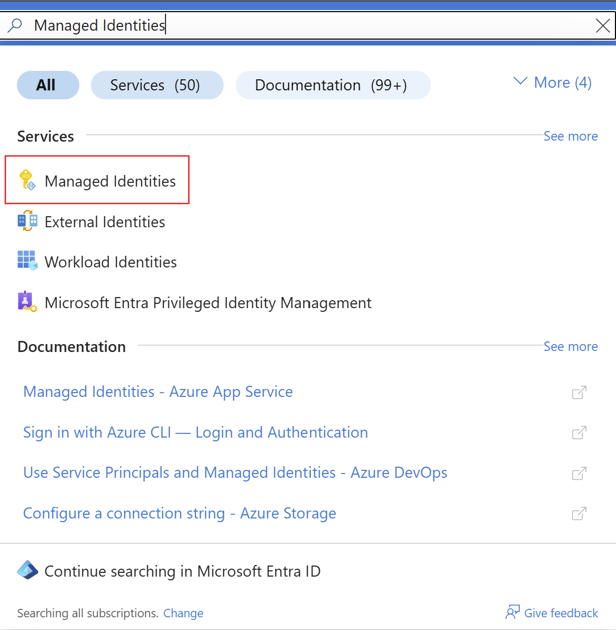
In the Azure Portal use the search bar to look for “Managed Identities”
-
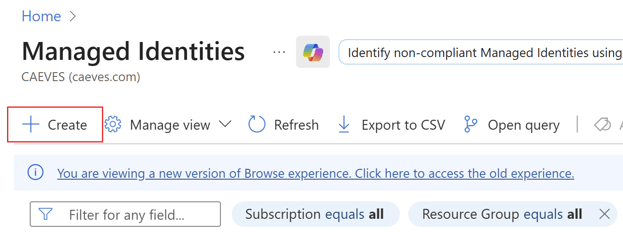
Click “Create” to create a new user-assigned Managed Identity
-
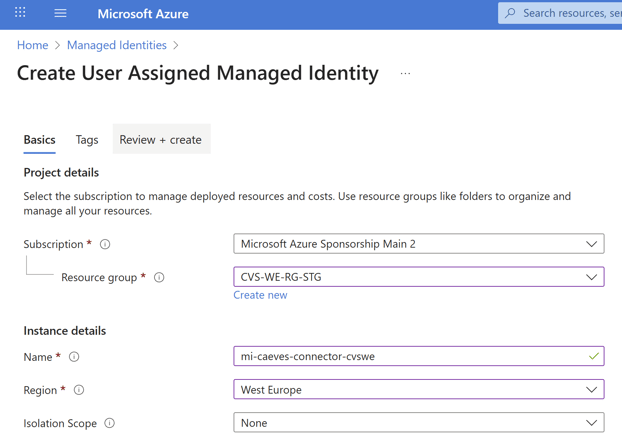
Provide project details information in the “Basics” section.
-
Select Subscription: "The Subcription contatining CAEVES instance"
-
Resource Group: "The resource group for CAEVES instance"
- Name: mi-caeves-connector-[xxxx]
- Region: "The region of the CAEVES instance"
- Isolation Scope: None
-
-
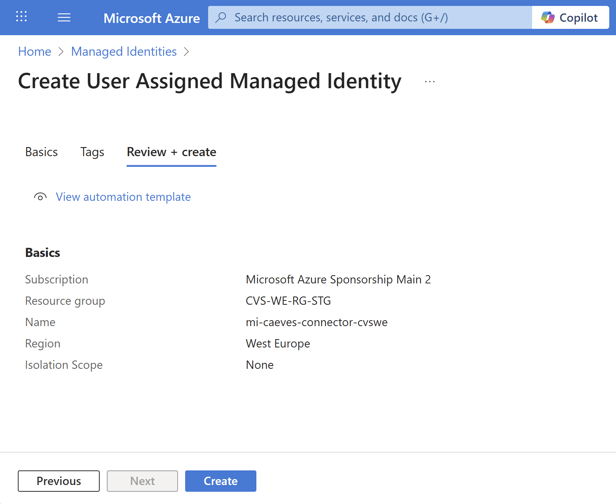
Click “Review + create” to create the User Assigned Managed Identity
Step 2: Set IAM Role Assignments
To ensure the CAEVES Copilot Connector can index the designated CAEVES Storage Account, and corresponding Object Storage containers, and Metadata (process) tables, follow the steps below to add the Storage Table Data Contributor role to the User Assigned Managed Identity on the Storage Account associated with FCG instance.
-
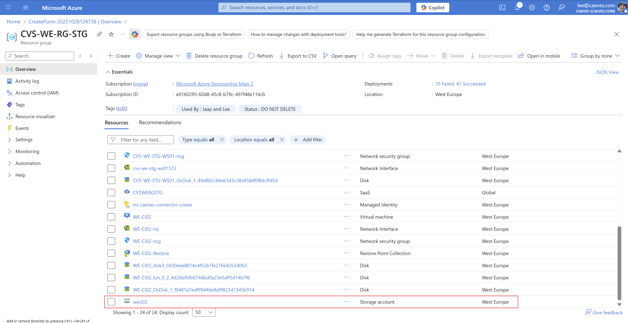
Navigate to your Storage Account, i.e. weci02
-
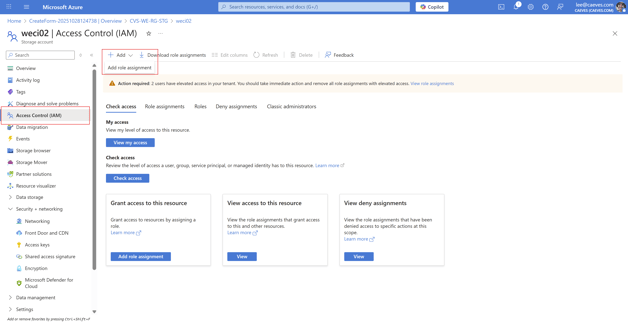
Click on “Access Control (IAM)”
-
Click “Add Role Assignment”
-
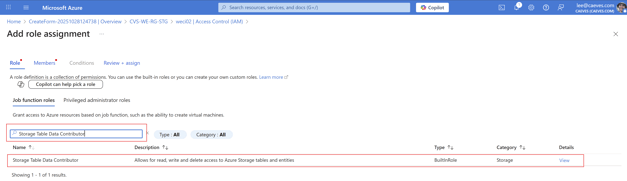
Search for “Storage Table Data Contributor”
-
Click “Next” to assign members to the IAM Role
-
-
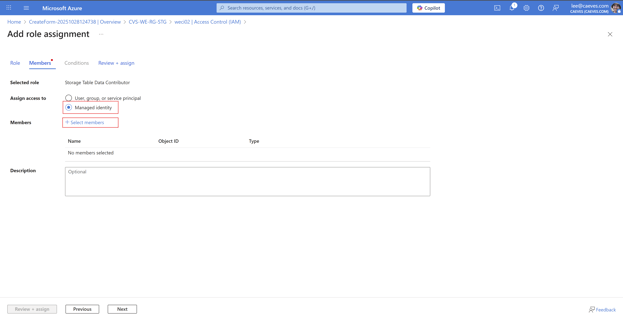
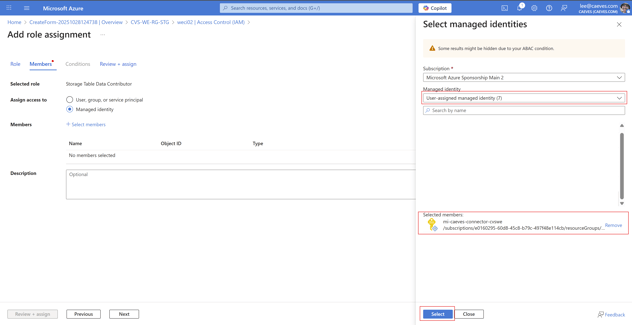
Select “Managed Identity”
-
Click “Select Members”
-
Select the Subscription of choice
-
Select “User-assigned managed identity”
-
Search the managed identity you created in step 1 of this guide
-
Click “Select” to select the managed identity
-
-
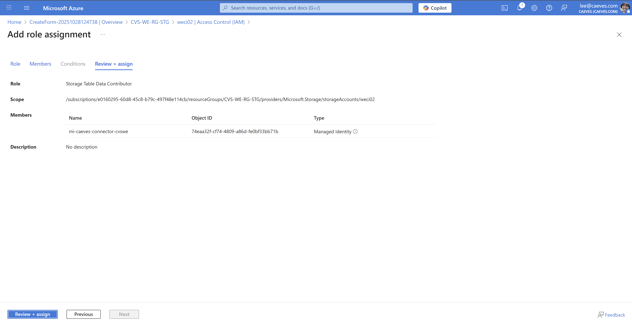
Click “Review + assign”, and confirm to add the role assignment
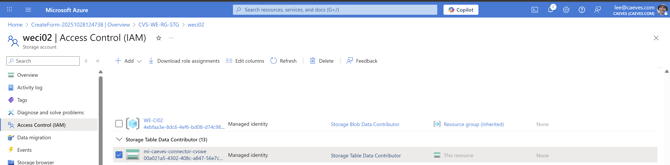
Confirm the Role Assignment has been committed:
Step 3: Install Required Modules (Run from Azure CLI)
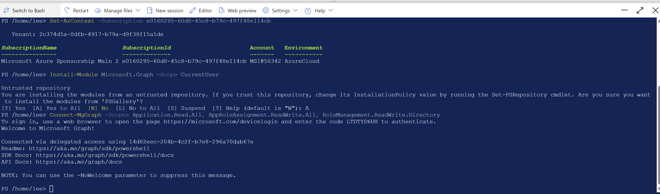
Run the following commands from the Azure CLI (PowerShell) in order to install the required modules in your Microsoft Azure Subscription
First, set the context of your subscription to the same subscription as you are running the CAEVES solution, specifically where you want to run the Azure Container Instance connecting Microsoft Graph.
Set-AzContext -Subscription xxxxxxxx-xxxx-xxxx-xxxx-xxxxxxxxxxxx
Install Microsoft Graph service under the scope of the current user and connect in preparation of setting the Managed Identity Role permissions.
Install-Module Microsoft.Graph -Scope CurrentUser
Connect-MgGraph -Scopes Application.Read.All, AppRoleAssignment.ReadWrite.All, RoleManagement.ReadWrite.Directory
Step 4: Set Managed Identity Role permissions for Graph
Run the following commands from the Azure CLI (PowerShell) in order to configure the required Graph API Permissions in your Microsoft Azure Subscription.
First, we need to ensure that the Managed Identity is added as a “Graph Owner” to the subscription.
-
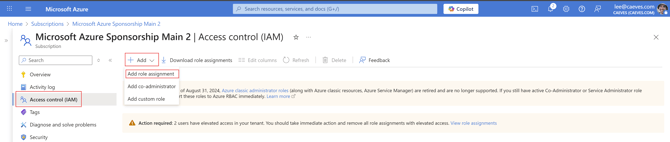
Navigate to your Subscription, i.e. Azure Sponsorship Main 2
-
Click on “Access Control (IAM)”
-
Click “Add Role Assignment”
-
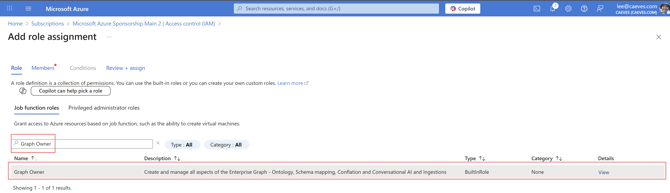
Search for “Graph Owner”
-
Click “Next” to assign members to the IAM Role
-
-
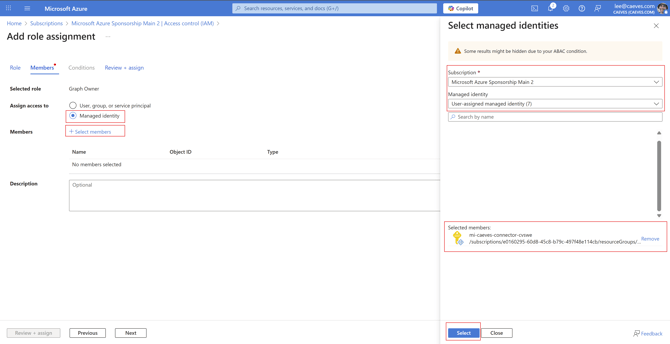
Select “Managed Identity”
-
Click “Select Members”
-
Select the Subscription of choice
-
Select “User-assigned managed identity”
-
Search the managed identity you created in step 1 of this guide
-
Click “Select” to select the managed identity
-
-
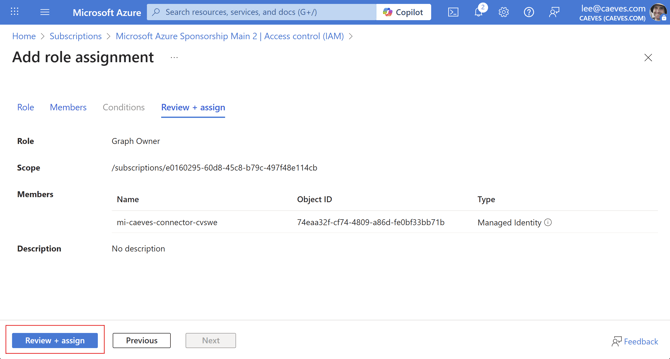
Click “Review + assign”
-
Confirm to add the role assignment
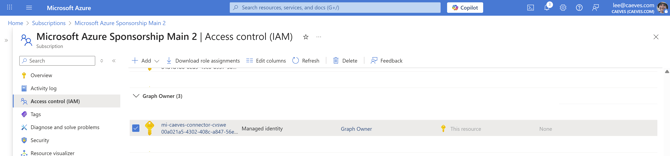
The next step in the process is to set the following Graph API permissions to the Managed Identity.
Microsoft Graph API Permissions:
-
ExternalConnection.ReadWrite.OwnedBy
-
ExternalItem.ReadWrite.OwnedBy
-
User.Read.All
- Group.Read.All
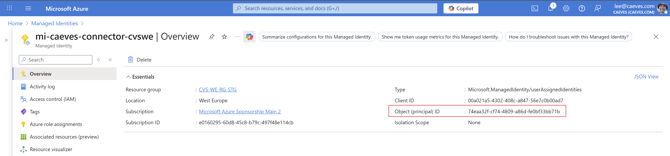
Run the following commands from the Azure CLI (PowerShell) where the Managed Identity Object (Principal) ID is "From the previous steps"
You can find this in the following location.
# Connect to Microsoft Graph with appropriate permissions
# You need at least: AppRoleAssignment.ReadWrite.All and Directory.Read.All
Connect-MgGraph -Scopes "AppRoleAssignment.ReadWrite.All","Directory.Read.All"
Select-MgProfile -Name beta  # optional, but ensures latest features

# Define your managed identity (Object ID of the Service Principal)
$managedIdentityId = "xxxxxxxx-xxxx-xxxx-xxxx-xxxxxxxxxxxx"

# Microsoft Graph app ID (always this one)
$graphAppId = "00000003-0000-0000-c000-000000000000"

# Get Microsoft Graph service principal (the target resource)
$msgraph = Get-MgServicePrincipal -Filter "AppId eq '$graphAppId'"

if (-not $msgraph) {
    Write-Error "❌ Could not find Microsoft Graph Service Principal. Make sure you're connected with the right permissions."
    return
}

# Define the roles to assign
$roleNames = @(
    "ExternalConnection.ReadWrite.OwnedBy",
    "ExternalItem.ReadWrite.OwnedBy",
    "User.Read.All",
    "Group.Read.All"
)

foreach ($roleName in $roleNames) {
    Write-Host "Assigning role: $roleName ..." -ForegroundColor Cyan

    $role = $msgraph.AppRoles | Where-Object { $_.Value -eq $roleName -and $_.AllowedMemberTypes -contains "Application" }

    if (-not $role) {
        Write-Warning "⚠️ Role '$roleName' not found on Microsoft Graph."
        continue
    }

    try {
        # Create the app role assignment
        New-MgServicePrincipalAppRoleAssignment `
            -ServicePrincipalId $managedIdentityId `
            -PrincipalId $managedIdentityId `
            -ResourceId $msgraph.Id `
            -AppRoleId $role.Id

        Write-Host "✅ Assigned '$roleName' successfully."
    }
    catch {
        Write-Warning "⚠️ Failed to assign '$roleName': $($_.Exception.Message)"
    }
}

Write-Host "All role assignments attempted."
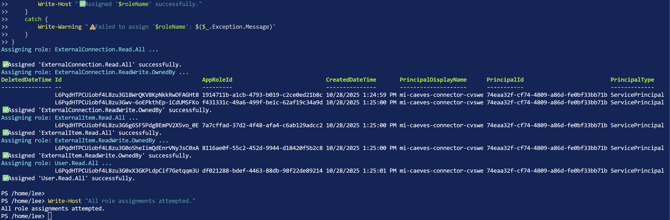
Note: if Graph is not installed in your Azure Subscription, install the Graph Module through PowerShell CLI
Step 5: Retrieve Azure IDs for Configuration
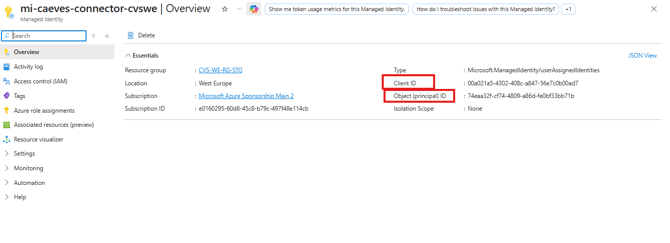
Retrieve the Principal ID
- Open your User-Assigned Managed Identity in the Azure portal.
- Go to the Overview page.
- Copy the Object ID → This is your Principal ID.
Retrieve the Client ID
- On the same Overview page of the Managed Identity, copy the Client ID.
- This is the Client ID (Application ID) required in your solution template.
Retrieve the Tenant ID
- Go to Azure Active Directory (Microsoft Entra ID) → Overview.
- Copy the Tenant ID → This identifies your Azure AD tenant.
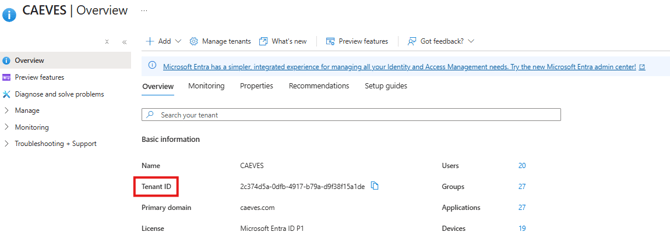
You are ready to deploy the CAEVES Co-Pilot connector.
Deployment: CAEVES Copilot Connector
Step 1: Create Copilot Connector Instance via Azure Marketplace
-
Navigate to Microsoft Marketplace → CAEVES Copilot Connector.
-
Select your Subscription and Plan, then click Create.
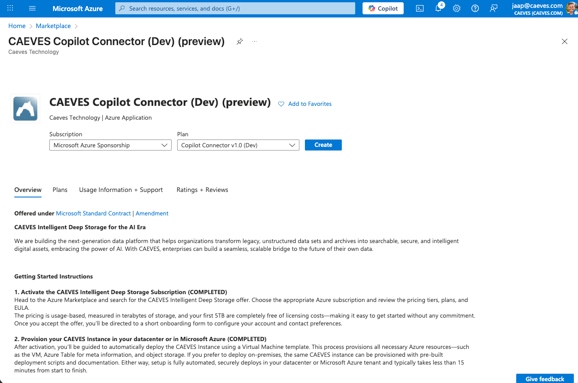
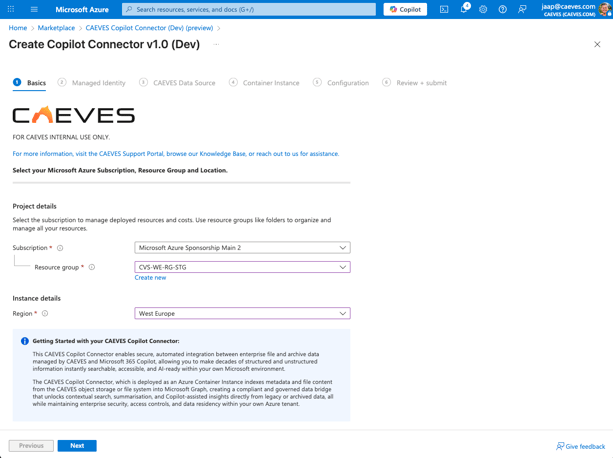
- Select your desired subscription, resource group and region, click Next.
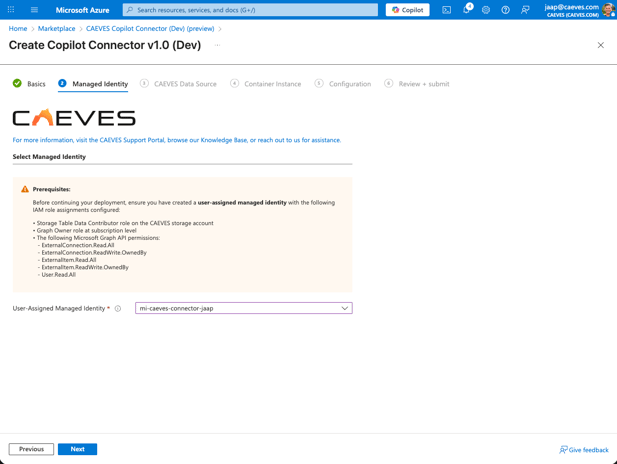
- Select the User-assigned Managed Identity created earlier, click Next.
- Select the Storage Account belonging to your CAEVES Instance, click Next
Tip: Only storage accounts in the same subscription and region will be shown.
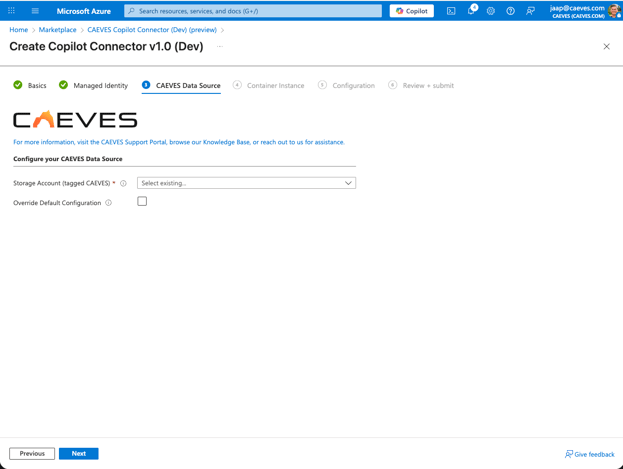
Step 2: Configure Deployment Options
-
Validate the CAEVES_WORKER_TABLE_URL and CAEVES_CONFIG_TABLE_URL is constructed correctly, click Next.
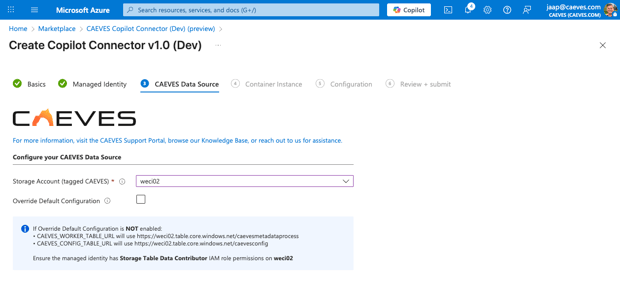
-
Optionally, check Override Default Configuration to customize:
-
Metadata Process table
-
CAEVES Config table
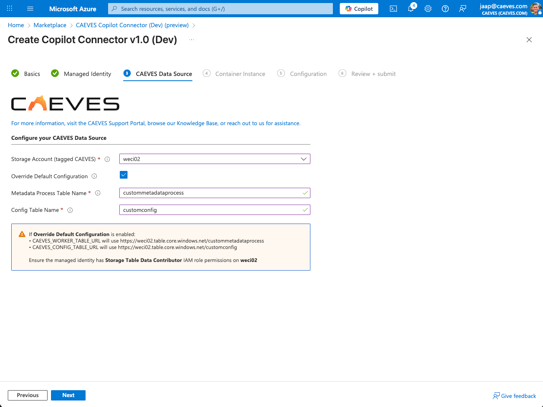
-
- Configure Container Instance
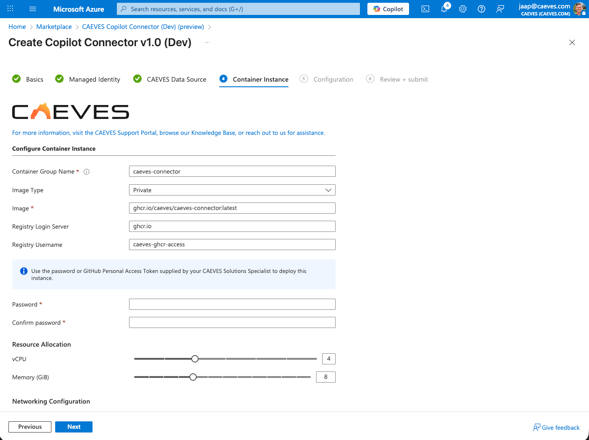
- Enter Container Instance details:
Provide your Container Instance details (VNET, Subnet, LogAnalytics Workspace)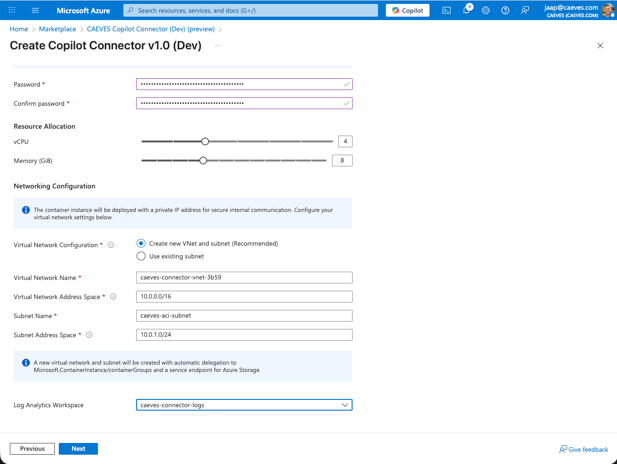
-
Provide your Configuration details for the CAEVES Copilot Connector
- Confirm Azure Client ID and Tenant ID placeholders.
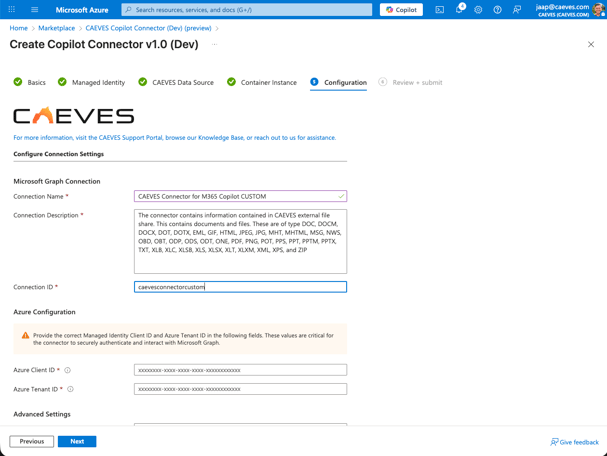
Step 3: Validate Configuration
-
Click Next and review deployment summary.
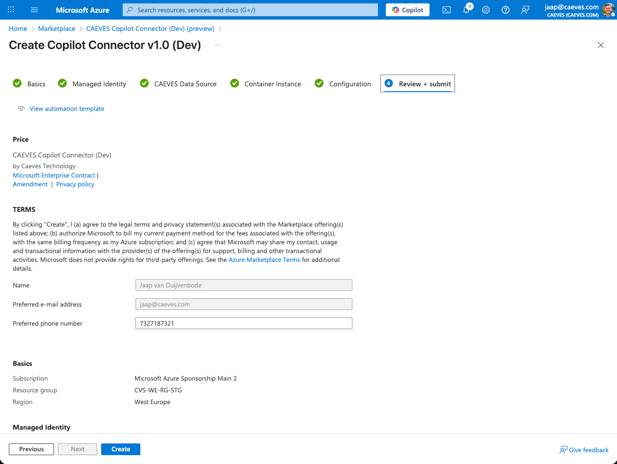
-
Click Create to start the deployment.
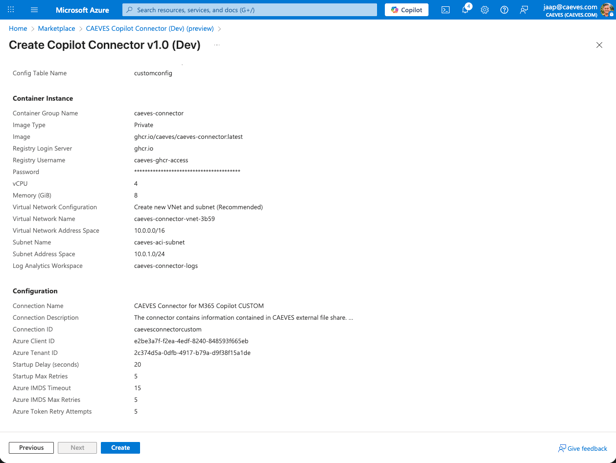
Step 4: Monitor Deployment
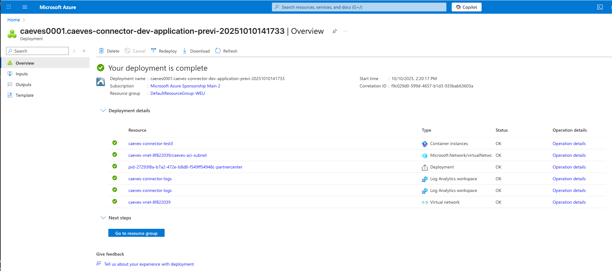
-
Validate the Deployment completes successfully
-
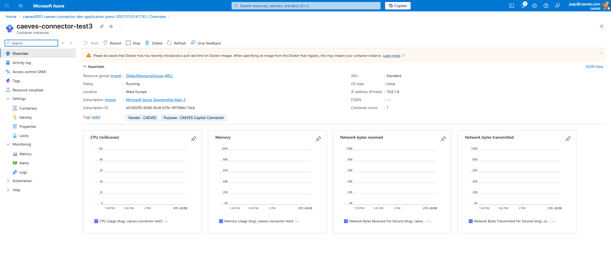
Confirm the Azure Container Instance is Starting / Running
-
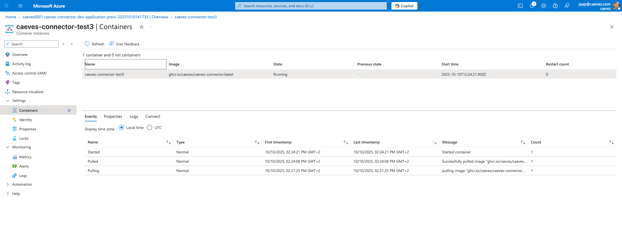
Validate the Azure Container Instance events and confirm the image has been pulled
-
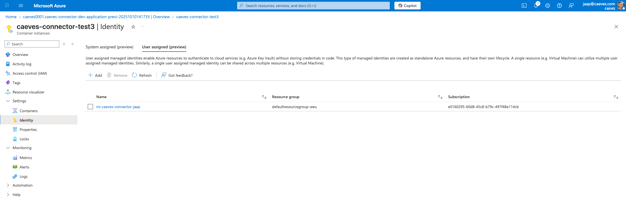
Validate the User-Assigned Managed Identity is associated with the Azure Container Instance
-
Confirm all “Properties” are in line with configuration parameters
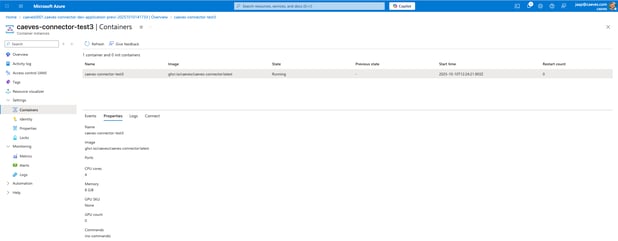
-
Confirm all “Environmental Variables” are specified correctly
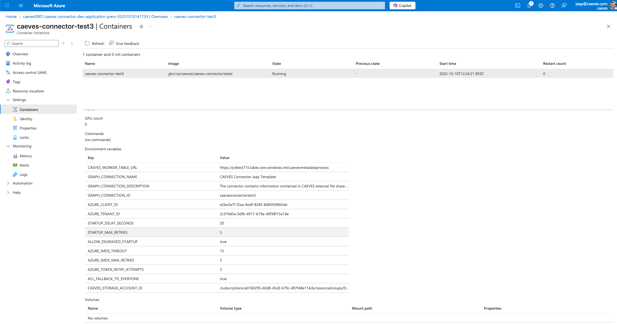
-
Validate logs
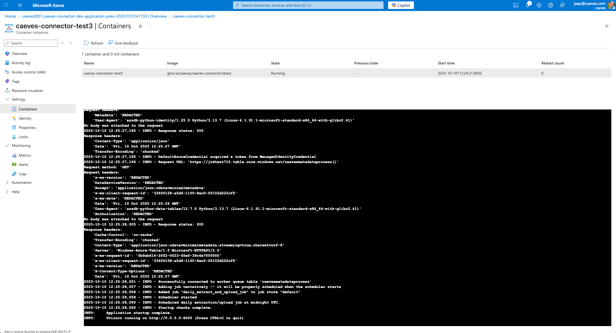
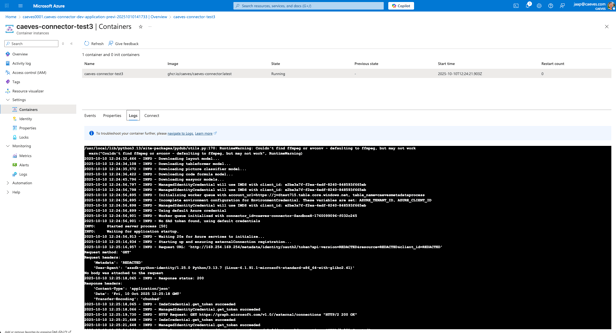
-
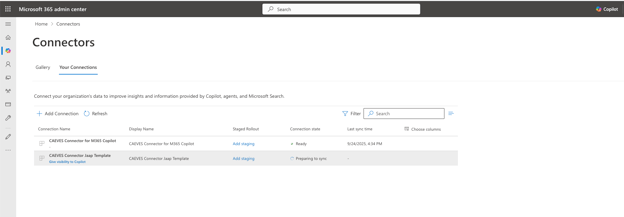
Confirm the new CAEVES Connector has been deployed in your M365 admin portal
-
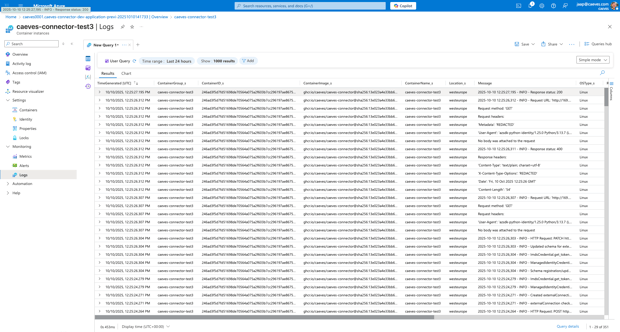
Check logs inside LogAnalytics
-
- Invoke any other CURL commands to trigger a health check, status or reindex:
- Run health check on the container:
curl http://localhost:8000/health -
Confirm the response indicates the connector is healthy.
-
A healthy connector shows
"status": "ok"and confirms environment variables and Graph SDK connectivity are functioning. - Check queue statistics:
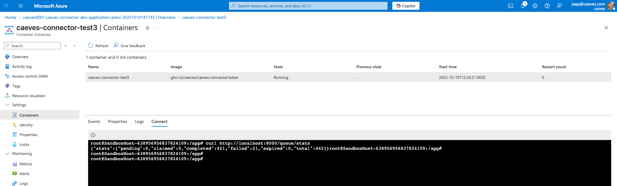
curl http://localhost:8000/queue/stats -
Displays the number of pending, claimed, completed, failed, and expired indexing jobs.
-
Ensure these numbers align with the expected workload.
- Start indexing immediately:
curl -X POST http://localhost:8000/run-now -
This triggers processing of queued items.
-
Confirm the command indicates the job has started successfully.
Connect to open a command line /bin/bash
-
-
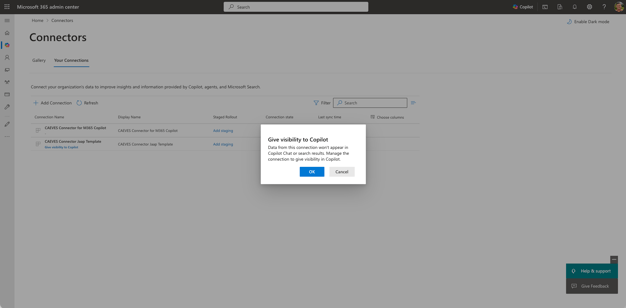
Give Visibility to Copilot
-
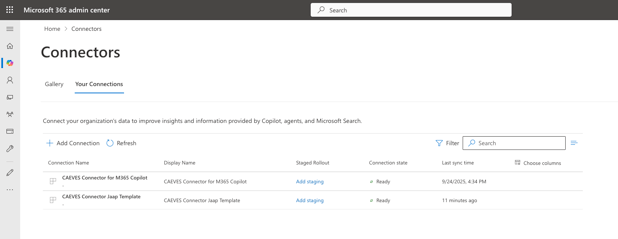
Validate the CAEVES connector is in “Ready” state, which means the connector is available as a custom connector to all users with a Copilot license.
-
Configure staged roll-out by clicking “Add Staging” to test the new connector
-
-
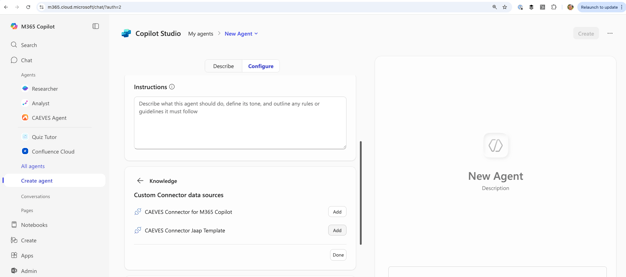
From a user workstation, create a new agent and validate the new custom connector data source is available.
You have successfully deployed the CAEVES Copilot Connector .